SettingsHow-to
Where did Launchpad go? How to find and open apps on macOS 27 and Tahoe
Short answer
Launchpad was replaced in macOS 26 Tahoe by Apps, a large app browser panel built into Spotlight. Open it by clicking the Apps icon in the Dock, pressing the Launchpad key (F4) on Apple keyboards, or pressing Command Space and then Command 1. You can't make your own folders the way Launchpad allowed, but apps are grouped by category.
On this page
Open Apps
- Click the Apps icon in the Dock.
- Press the Launchpad key (F4, with the grid icon) on an Apple keyboard.
- Press Command Space to open Spotlight, then Command 1 for the Applications view.
- Pinch with your thumb and three fingers on the trackpad.
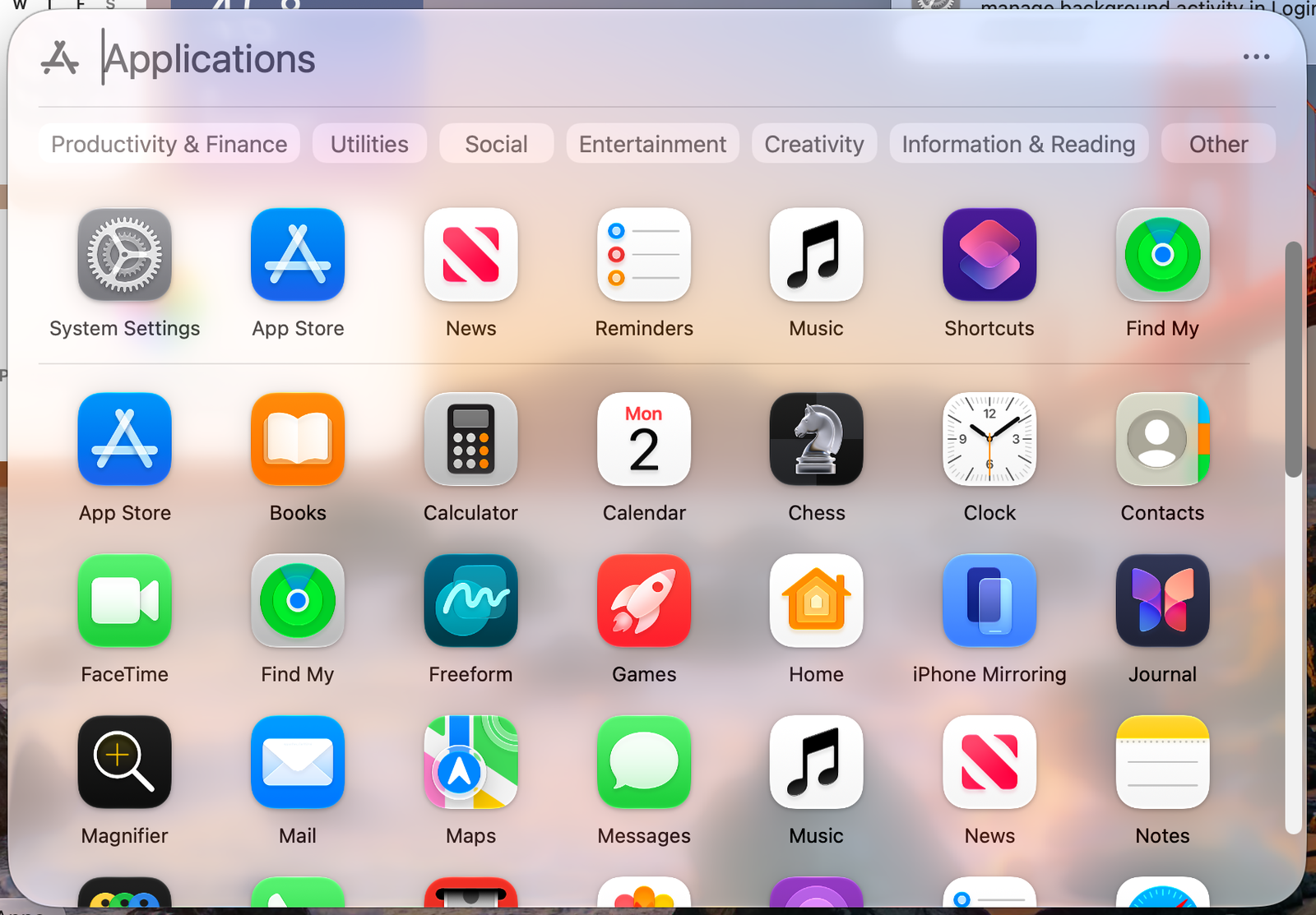
Apps isn't in the Dock
Open the Applications folder in Finder, find Apps, and drag it into the Dock.
Faster ways to open an app
- Spotlight: press Command Space, type the first letters, press Return.
- The Applications folder: in Finder press Shift Command A.
- Keep it in the Dock: right-click a running app's Dock icon and choose Options › Keep in Dock.
On macOS 27: Apps doesn't respond
Some people find the Apps icon doesn't open anything until they click Spotlight in the menu bar once. Do that, or restart the Dock with killall Dock in Terminal.
Other apps that can help
You don’t need any of these for the steps above. They go further in different ways, so pick what fits how you work.
| App | What it does | Price |
|---|---|---|
| Raycast | Fast launcher with app search, hotkeys per app and extensions | Free, Pro paid |
| Alfred | Launcher with app and file search | Free, Powerpack paid |
| LaunchOS | Brings back a Launchpad-style grid with folders | Paid |
Sources and further reading
- How to launch apps now that Launchpad is gone · MacMost
- macOS 27 issues: the Apps drawer · CleanMyMac blog
Reader tips
No tips yet. If something else worked for you, or a step looks different on your Mac, add it here.