SettingsHow-to
How to customize Control Center on Mac (macOS 27, Tahoe and Sequoia)
Short answer
On macOS 27 and Tahoe, open Control Center, click Edit Controls at the bottom, then drag controls in or out and resize them. On Sequoia, controls are fixed, and you choose which also show in the menu bar in System Settings › Control Center.
On this page
Add, remove and rearrange controls
macOS 27 and 26
- Click Control Center in the menu bar (the icon with two switches).
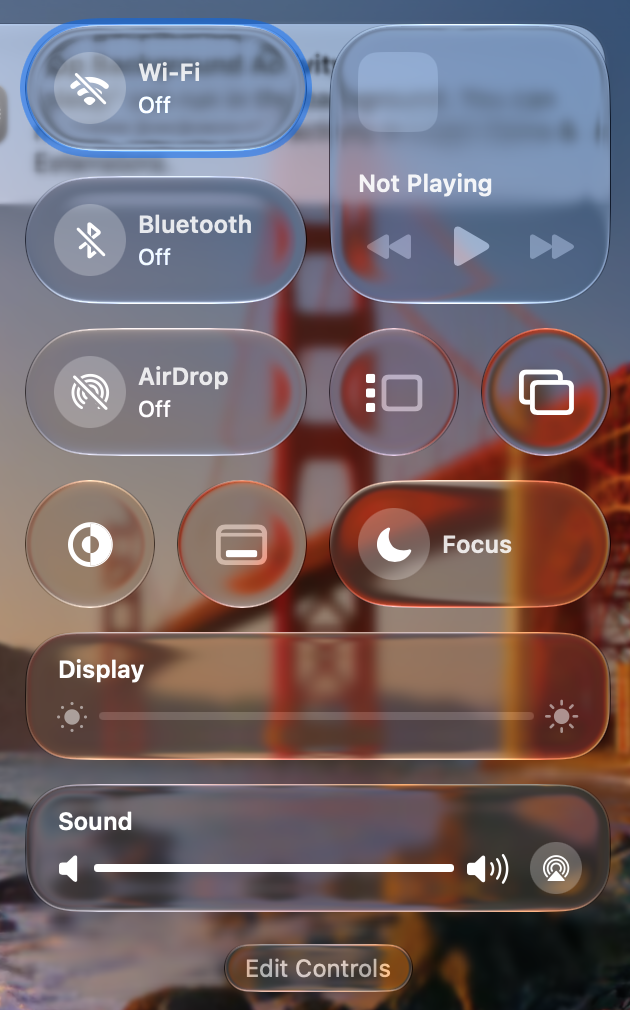
- Click Edit Controls at the bottom.
- Drag controls from the gallery into Control Center, drag them around to reorder, or click − to remove one.
- Right-click a control to change its size.
- Click Done.
On macOS 27.2, the brightness and volume sliders have a new design.
macOS 15 Sequoia
- Open System Settings › Control Center.
- For each module, choose Show in Menu Bar or Don't Show in Menu Bar. Under Other Modules, choose whether each one appears in Control Center at all.
Put a control in the menu bar
Drag a control out of Control Center onto the menu bar while editing, or turn it on in System Settings › Menu Bar on Tahoe and macOS 27. To remove one, hold Command and drag it off the menu bar. See managing menu bar icons.
Sources and further reading
- Use Control Center on Mac · Apple Support
Applies tomacOS 27TahoeSequoia
Reader tips
No tips yet. If something else worked for you, or a step looks different on your Mac, add it here.