DockFix
Dock not showing on your external monitor (or missing entirely) on Mac
Short answer
The Dock shows on one display at a time. To bring it to your external monitor, push the pointer against that screen's bottom edge for a moment. If that does nothing, a setting is keeping the Dock on your main display.
On this page
Bring the Dock to the external monitor
- Move the pointer to the very bottom of the external screen and keep moving down for a second. The Dock should slide over.
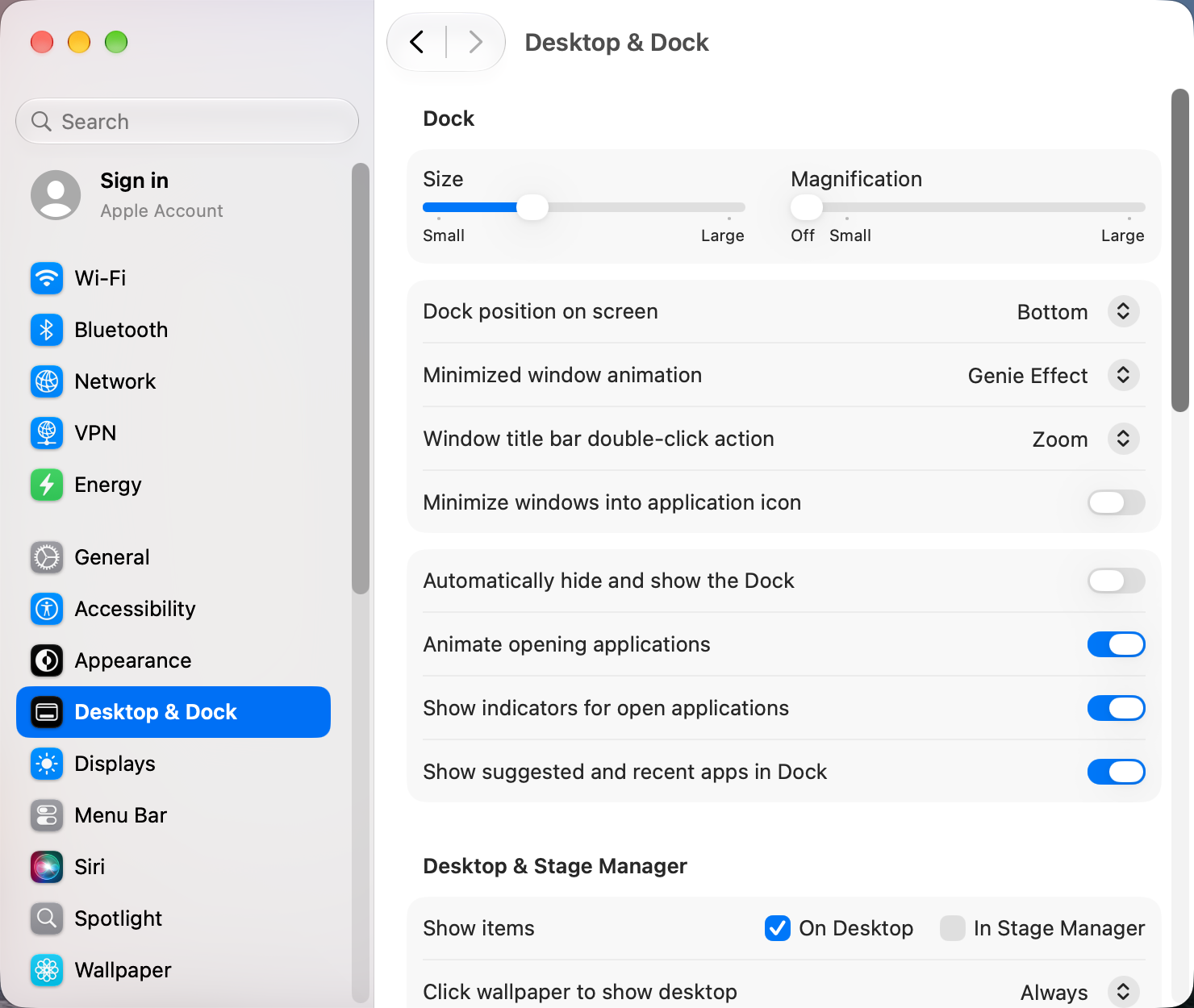
- If it doesn't, open System Settings › Desktop & Dock, scroll to Mission Control, and check that Displays have separate Spaces is on. Without it, the Dock only lives on the main display. Changing it needs a log out.
- If your Dock is on the left or right side, it only appears on the outermost screen on that side. Change Dock position on screen to Bottom, or rearrange the displays.
Make the external monitor the main display
If you mostly work on the external screen, make it the main display, so the Dock and menu bar start there:
- Open System Settings › Displays.
- Select the external monitor and set Use as to Main display.
The Dock has disappeared completely
Work through these in order:
- It may be hidden. Press Option Command D, which toggles Dock hiding. Or check Automatically hide and show the Dock in Desktop & Dock.
- You're in a full-screen app. Full-screen apps hide the Dock until you push to the bottom edge. Press Control Command F to leave full screen.
- Restart the Dock in Terminal. This keeps your settings and icons.
killall Dock- Reset the Dock as a last resort. This restores the factory Dock: your added apps, position and size go back to the defaults.
defaults delete com.apple.dock; killall DockDock keeps disappearing on its own
- Autohide may have been switched on by accident with Option Command D. Press it again.
- Some full-screen games and video players hide the Dock and don't always give it back. Quit the app, then restart the Dock.
- If it started after updating to macOS Tahoe, see common macOS Tahoe problems.
Other apps that can help
You don’t need any of these for the steps above. They go further in different ways, so pick what fits how you work.
| App | What it does | Price |
|---|---|---|
| uBar | Replaces the Dock with a Windows-style taskbar | Paid |
| DockDoor | Window previews when you hover Dock icons | Free, open source |
| BetterDisplay | Manage displays, resolutions and the main display | Free, Pro paid |
| Mission Boost Made by us | Close, minimize and quit windows inside Mission Control, plus side-by-side layouts from there | €9 once, free trial |
Sources and further reading
- Use multiple displays and arrange them · Apple Support
- Mac keyboard shortcuts · Apple Support
- Dock and Mission Control defaults, with demos · macos-defaults.com
Applies tomacOS 27TahoeSequoiaSonoma
Reader tips
No tips yet. If something else worked for you, or a step looks different on your Mac, add it here.