SettingsHow-to
How to make Liquid Glass less transparent on Mac (macOS 27 and Tahoe)
Short answer
On macOS 27, open System Settings › Appearance and drag the Liquid Glass slider toward the more opaque end. On macOS 26 Tahoe, choose Tinted instead of Clear in the same pane. On either version, Reduce transparency in Accessibility makes menus, the Dock and sidebars fully solid.
On this page
Change how clear Liquid Glass is
macOS 27 Golden Gate
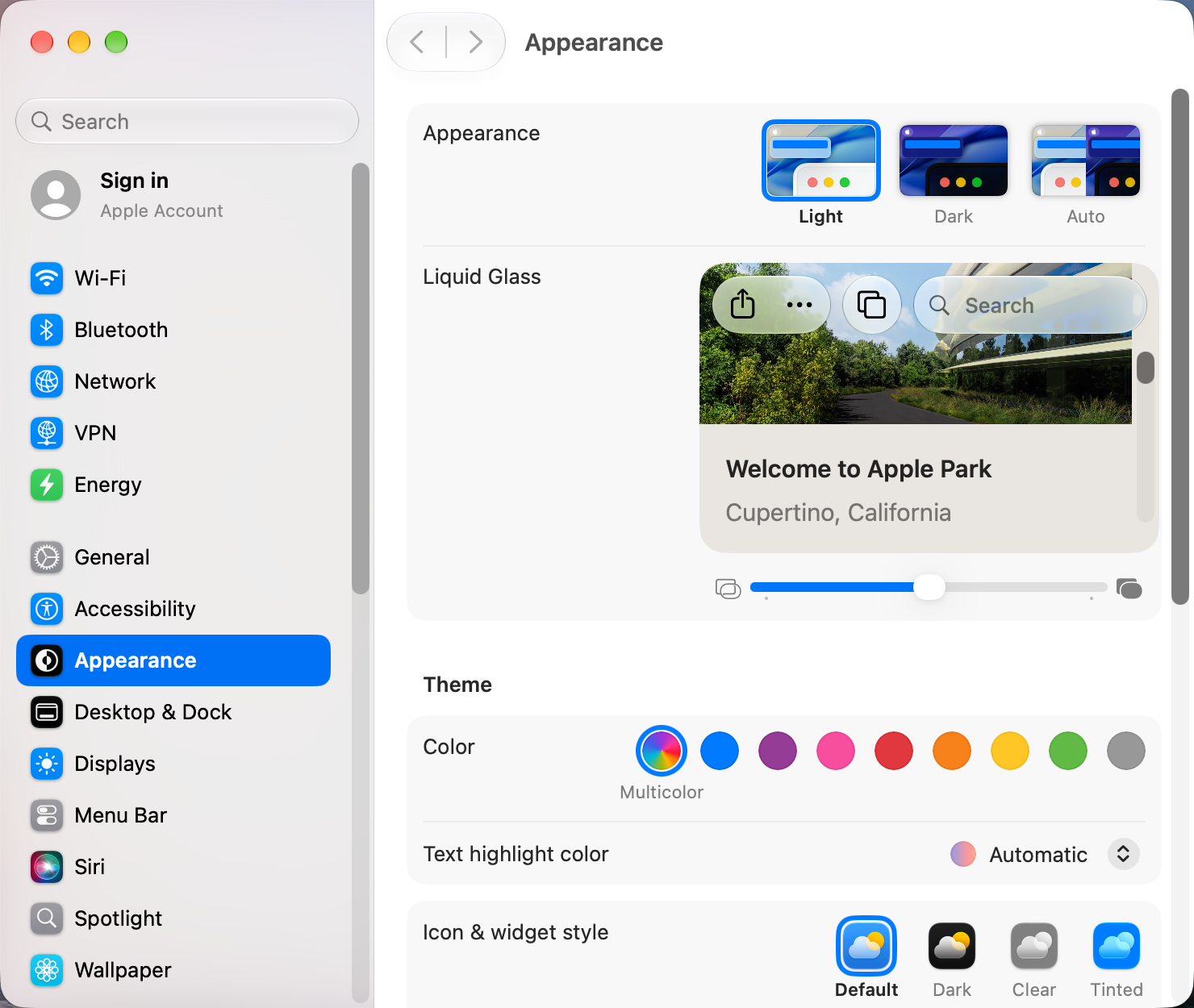
- Open System Settings › Appearance.
- Find the Liquid Glass slider. It has three marked positions, from most clear to most opaque, and you can stop anywhere between them. The middle is the default.
- Drag it to the right for a more solid look. The preview updates as you drag.
The slider changes the Dock, widgets, sidebars, toolbars and Now Playing bars all at once.
macOS 26 Tahoe
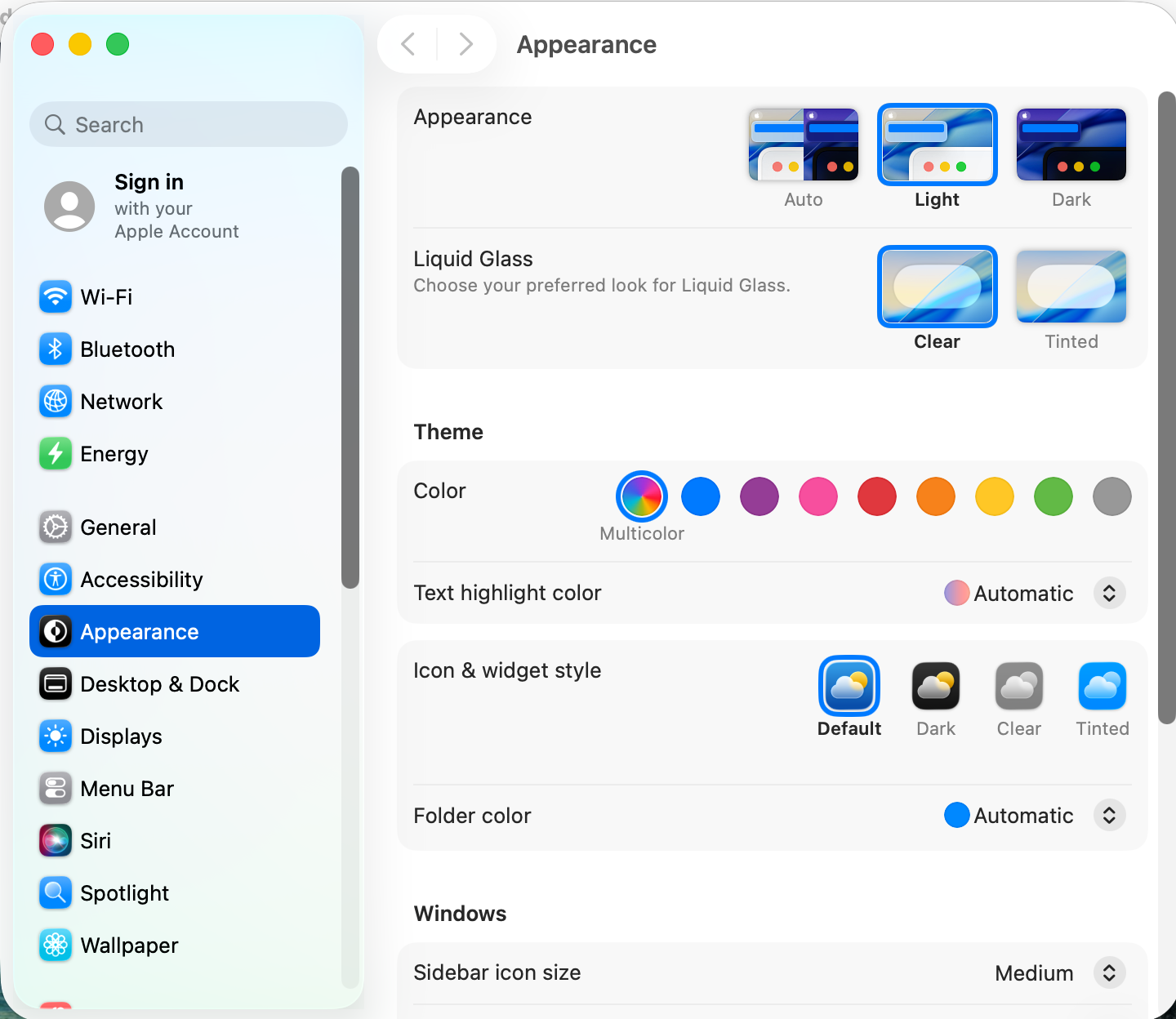
- Open System Settings › Appearance.
- Under Liquid Glass, choose Tinted for a more solid, readable look, or Clear for the original glass.
Tahoe only has these two choices. For anything more solid, use Reduce transparency below.
Make everything solid: Reduce transparency
- Open System Settings › Accessibility › Display.
- Turn on Reduce transparency.
Menus, the menu bar, the Dock and sidebars become solid colours. It also takes a little load off the graphics chip, which can help on older Macs.
Text still hard to read?
- Turn on Increase contrast in Accessibility › Display, which adds borders around buttons and controls.
- Choose a plainer wallpaper. Busy photos show through glass the most.
Sources and further reading
- macOS 27 gives you more control over Liquid Glass · 9to5Mac
- Apple finally lets you control Liquid Glass in iOS 27 and macOS 27 · iGeeksBlog
- Change Appearance settings on Mac · Apple Support