SettingsHow-to
How to turn off notifications on Mac, per app or all at once
Short answer
To silence one app, open System Settings › Notifications, click the app, and turn off Allow notifications. To silence everything for a while, open Control Center, click Focus, and turn on Do Not Disturb.
On this page
Turn off notifications for one app
- Open System Settings › Notifications.
- Scroll to Application Notifications and click the app.
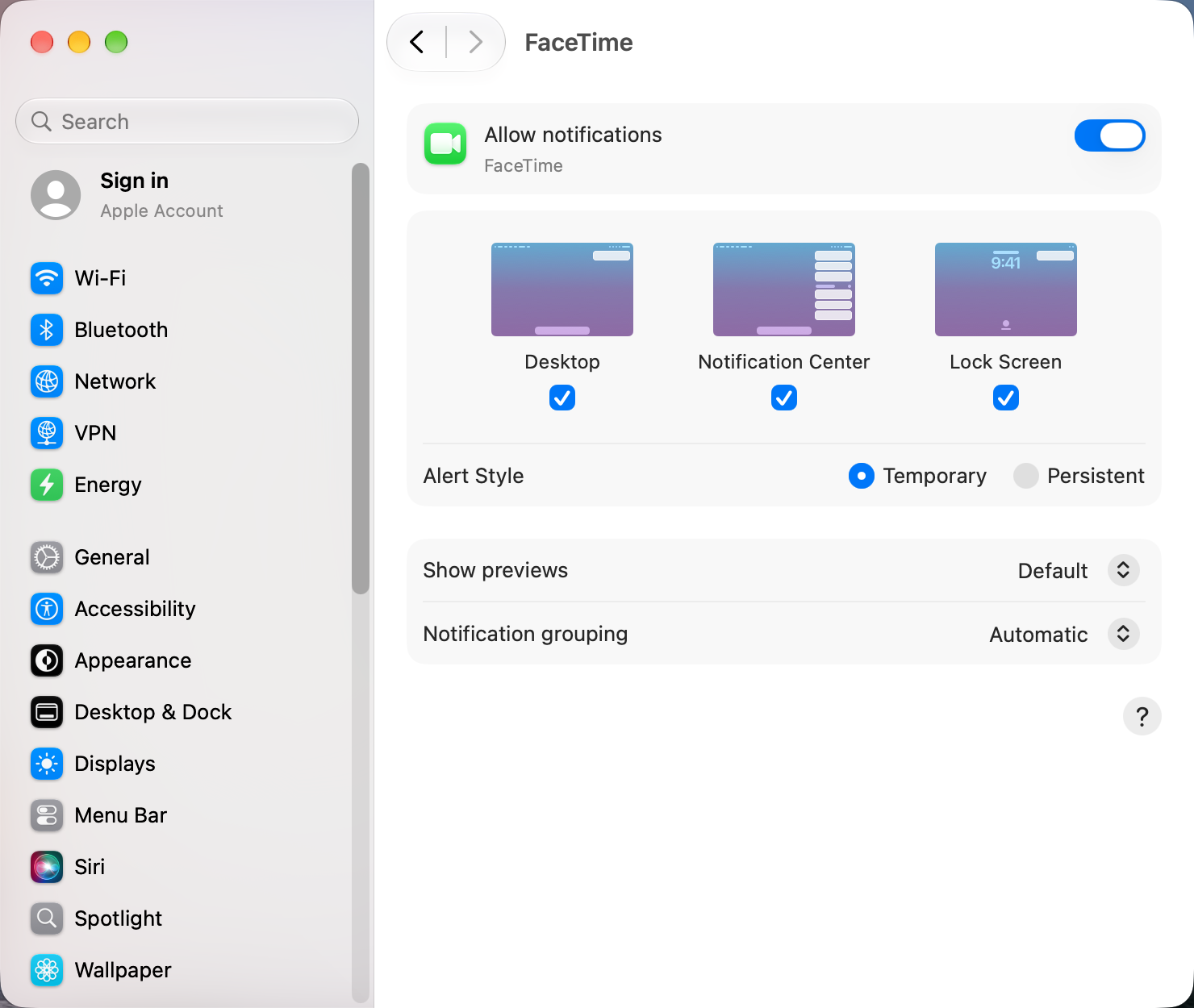
- Turn off Allow notifications. Or keep them but untick Desktop and Lock Screen, so they only collect in Notification Center.
Silence everything for a while
- Click Control Center in the menu bar, then Focus.
- Click Do Not Disturb, and choose how long: for an hour, until this evening, or until you turn it off.
To let some people or apps through, set up a Focus in System Settings › Focus.
Hide notifications while presenting
In System Settings › Notifications, find when mirroring or sharing the display under Show Notifications and set it to Notifications Off, which is the default. Notifications stay quiet while you share your screen in a call or mirror to a TV.
Hide what notifications say
In System Settings › Notifications, set Show previews to When Unlocked or Never. Message text and email subjects then stay hidden on the lock screen.
Stop websites asking to send notifications
In Safari, open Settings › Websites › Notifications and untick Allow websites to ask for permission to send notifications. Chrome and Firefox have a similar setting under site permissions.
Sources and further reading
- Change Notifications settings on Mac · Apple Support
- Set up a Focus on Mac · Apple Support
Applies tomacOS 27TahoeSequoia
Reader tips
No tips yet. If something else worked for you, or a step looks different on your Mac, add it here.