SettingsHow-to
How to take a screenshot on Mac, and change where screenshots are saved
Short answer
Press Shift Command 3 for the whole screen, or Shift Command 4 to drag a selection. Screenshots go to the desktop by default. To change that, press Shift Command 5, click Options, and pick a folder under Save to.
On this page
Every shortcut
| Shortcut | What it captures |
|---|---|
| Shift Command 3 | The whole screen |
| Shift Command 4 | An area you drag |
| Shift Command 4, then Space | One window, with its shadow. Hold Option while clicking to leave the shadow out. |
| Shift Command 5 | The Screenshot toolbar, with screen recording and options |
| Add Control to any of the above | Copies to the clipboard instead of saving a file |
Change where screenshots are saved
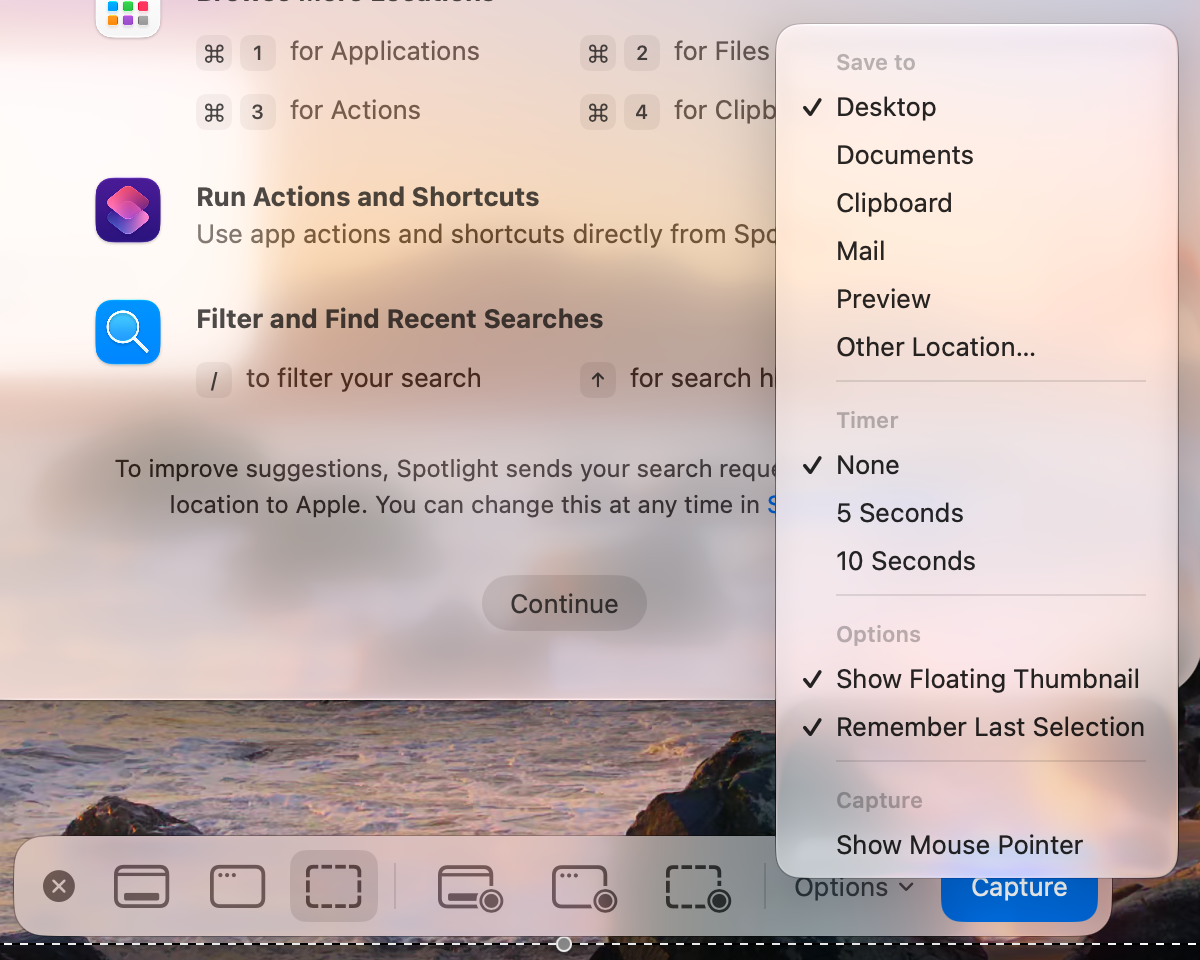
- Press Shift Command 5.
- Click Options in the toolbar.
- Under Save to, choose a place, or Other Location for any folder. Clipboard stops saving files entirely.
Turn off the floating thumbnail
The thumbnail in the corner delays saving by a few seconds. Press Shift Command 5, click Options, and untick Show Floating Thumbnail.
Save as JPG instead of PNG
defaults write com.apple.screencapture type jpg; killall SystemUIServerUndo it with defaults delete com.apple.screencapture type; killall SystemUIServer.
Record the screen
Press Shift Command 5 and choose Record Entire Screen or Record Selected Portion. To record sound from a microphone, pick it under Options. Stop with the stop button in the menu bar.
Screenshots don't work
- Check the shortcuts are on in System Settings › Keyboard › Keyboard Shortcuts › Screenshots.
- Some apps, such as streaming video players, block screenshots of their windows on purpose.
- On work Macs, IT can turn off screen capture.
Other apps that can help
You don’t need any of these for the steps above. They go further in different ways, so pick what fits how you work.
| App | What it does | Price |
|---|---|---|
| CleanShot X | Screenshots and recordings with annotation, scrolling capture and cloud links | Paid |
| Shottr | Fast screenshots with measuring, OCR and annotation | Free, paid licence |
| Xnapper | Screenshots with automatic backgrounds for sharing | Paid |
Sources and further reading
- Take screenshots or screen recordings on Mac · Apple Support
- Screenshot settings with demos · macos-defaults.com
Applies tomacOS 27TahoeSequoia
Reader tips
No tips yet. If something else worked for you, or a step looks different on your Mac, add it here.