Spaces and Mission ControlHow-to
How to set up and change hot corners on Mac
Short answer
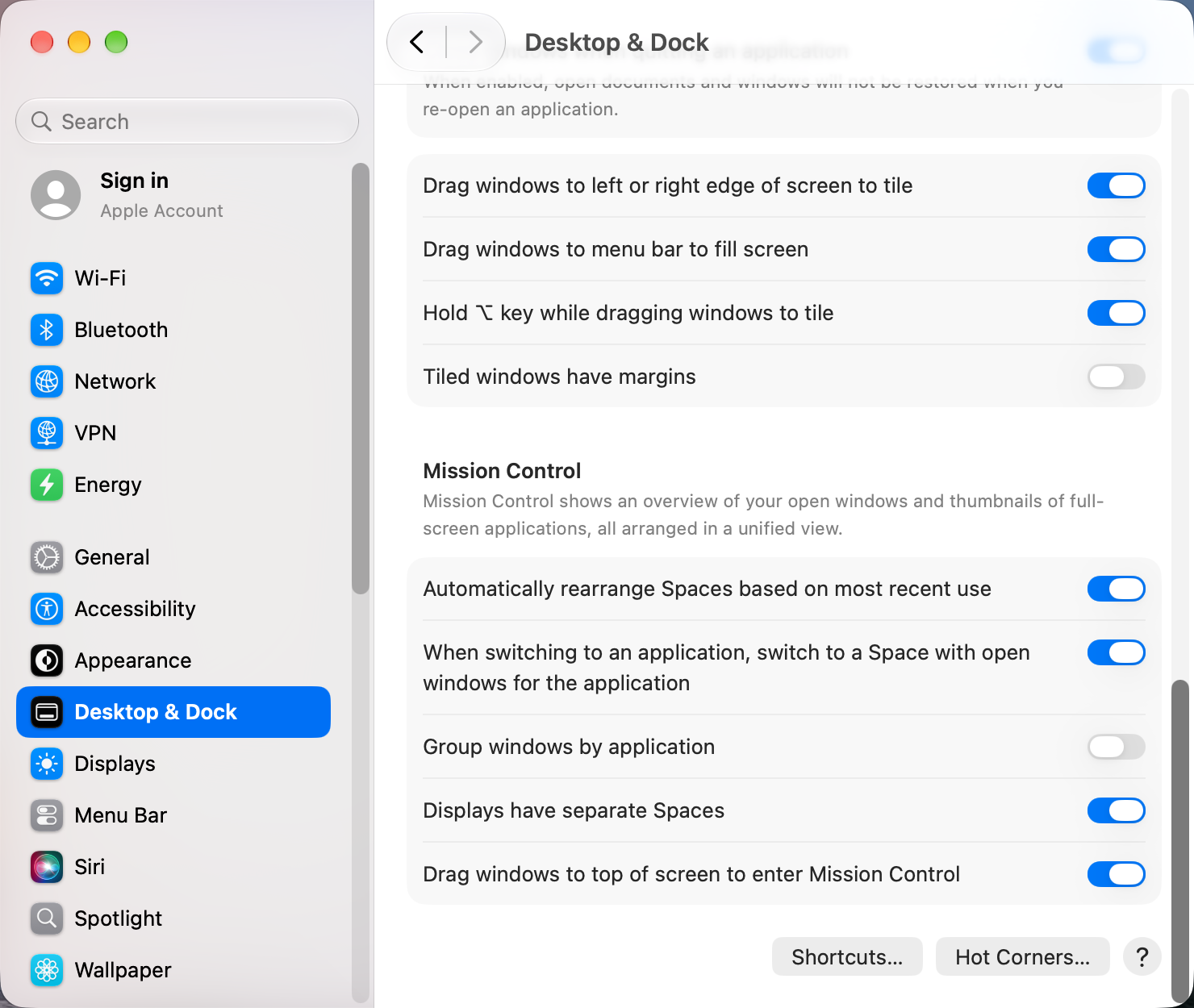
Hot corners are in System Settings › Desktop & Dock. Scroll to the bottom and click Hot Corners…. Each screen corner gets a menu where you pick what happens when you push the pointer into it.
On this page
Set or change a hot corner
- Open System Settings › Desktop & Dock.
- Scroll to the bottom and click Hot Corners….
- Open the menu for a corner and choose an action. Choose – to turn that corner off.
- Click Done. Move the pointer firmly into the corner to try it.
What each action does
| Action | Good for |
|---|---|
| Mission Control | Seeing every window and desktop at once |
| Application Windows | Seeing only the current app's windows |
| Desktop | Pushing all windows aside to reach files on the desktop |
| Notification Center | Checking notifications and widgets |
| Quick Note | Jotting something down without opening Notes |
| Start Screen Saver / Disable Screen Saver | Presentations and quick privacy |
| Put Display to Sleep | Leaving the desk for a moment |
| Lock Screen | Locking the Mac with one flick |
Stop triggering them by accident
Hold a modifier key while you pick the action in the menu. Hold Command, Option, Control or Shift and the menu entries change to show the key, for example "⌘ Mission Control". That corner then only fires while you hold the same key, so casual mouse movement never triggers it.
Set hot corners from Terminal
Hot corners are stored as Dock preferences, which is handy for setting up a new Mac with a script. Corners are tl, tr, bl and br. This example puts Mission Control on the top-left corner with no modifier:
defaults write com.apple.dock wvous-tl-corner -int 2
defaults write com.apple.dock wvous-tl-modifier -int 0
killall Dock| Value | Action |
|---|---|
| 1 | Off |
| 2 | Mission Control |
| 3 | Application Windows |
| 4 | Desktop |
| 5 | Start Screen Saver |
| 6 | Disable Screen Saver |
| 10 | Put Display to Sleep |
| 12 | Notification Center |
| 13 | Lock Screen |
| 14 | Quick Note |
For the modifier, use 0 for none, 131072 for Shift, 262144 for Control, 524288 for Option and 1048576 for Command.
Hot corners not working?
- Push all the way into the corner. On a second display, the corner must be a real outer corner of the arrangement, not one that touches the other screen.
- If you set a modifier, you must hold that key.
- Restart the Dock, which handles hot corners, with
killall Dock.
Other apps that can help
You don’t need any of these for the steps above. They go further in different ways, so pick what fits how you work.
| App | What it does | Price |
|---|---|---|
| BetterTouchTool | Custom gestures, shortcuts and hot-corner-like triggers | Paid |
| Hammerspoon | Script windows, Spaces and hot corners with Lua | Free, open source |
| Mission Boost Made by us | Close, minimize and quit windows inside Mission Control, plus side-by-side layouts from there | €9 once, free trial |
Sources and further reading
- Use hot corners on Mac · Apple Support
- How to use hot corners on Mac · Tom's Guide
Applies tomacOS 27TahoeSequoiaSonoma
Reader tips
No tips yet. If something else worked for you, or a step looks different on your Mac, add it here.