"App can't be opened" or "is damaged" on Mac: how to open it safely
Short answer
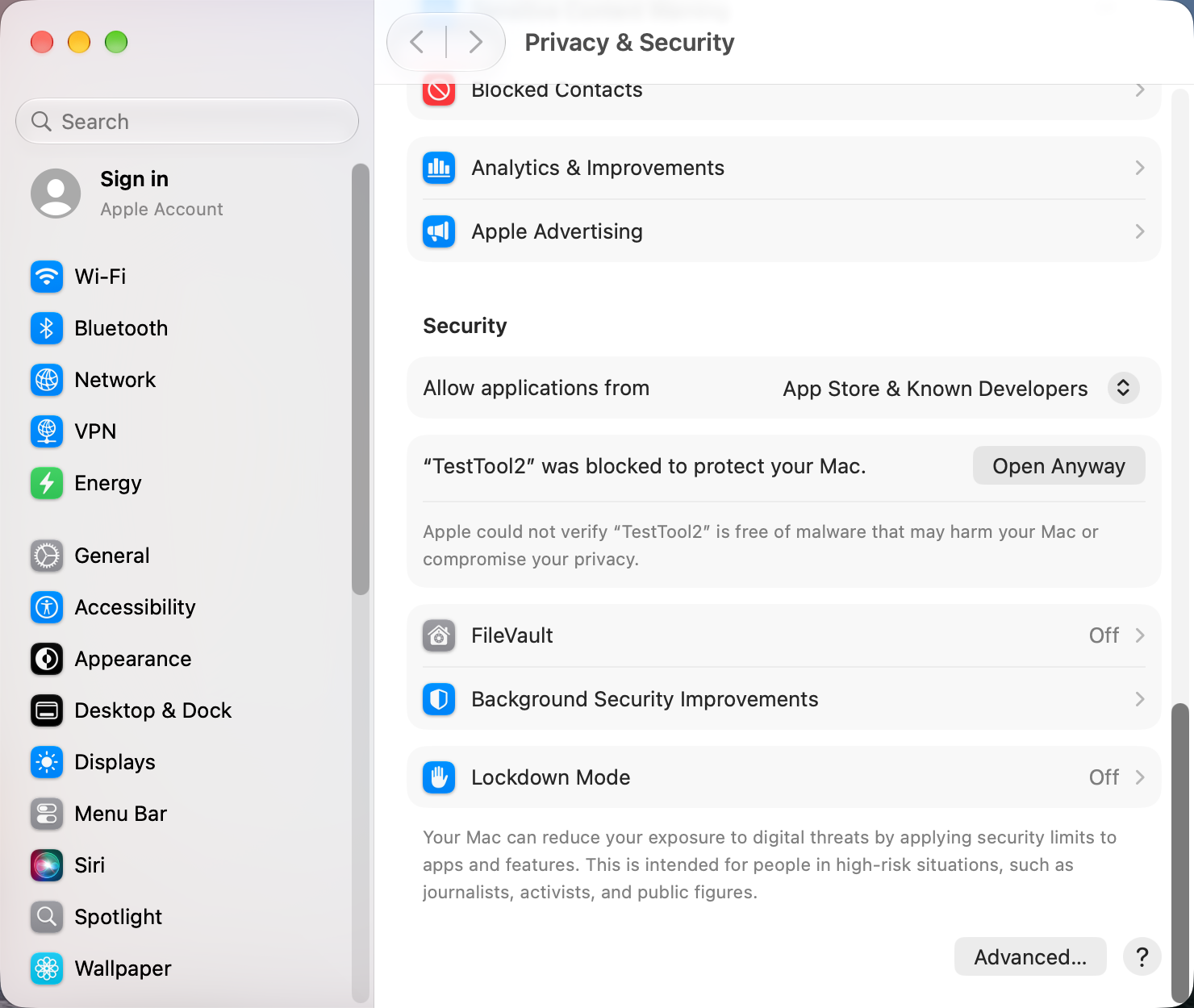
macOS blocks apps that aren't from the App Store or a developer Apple has checked. If you trust where the app came from, try to open it once, then go to System Settings › Privacy & Security, scroll down to Security, and click Open Anyway. Since macOS 15 Sequoia, the old trick of Control-clicking the app and choosing Open no longer gets past this.
On this page
Careful: these warnings exist to stop malware. Only open apps you downloaded from the developer's own site or a source you trust. If you're not sure, delete it.
"Apple could not verify…" or "unidentified developer"
- Double-click the app and click Done on the warning.
- Open System Settings › Privacy & Security and scroll to Security.
- Next to the message about the app, click Open Anyway. In the “Open?” dialog, click Open Anyway again and enter your password. The app opens straight away.
- Open the app again and confirm. macOS remembers your choice for that app.
"…is damaged and can't be opened"
This usually means the download is incomplete or the app's signature is broken, not that it's literally damaged.
- Delete it and download it again from the developer's own website.
- Check the developer's site for a version made for your macOS version.
- If you're certain the app is safe (for example, an open-source app you built yourself), you can remove the download quarantine flag. Change the app name to match:
xattr -dr com.apple.quarantine "/Applications/App Name.app""You need to update…" or the app quits right away
The app may be too old for your macOS version, or built only for Intel Macs. Check for an update from the developer. See which apps still need Rosetta.
Apps from your company
On a managed Mac, IT can block apps entirely, and Open Anyway won't appear. Ask them to approve the app.
Sources and further reading
- Safely open apps on your Mac · Apple Support
- Open a Mac app from an unknown developer · Apple Support
Applies tomacOS 27TahoeSequoia
Reader tips
No tips yet. If something else worked for you, or a step looks different on your Mac, add it here.