DisplaysFix
External monitor flickering, no signal or no HDR on Mac (macOS 27 and Tahoe)
USB-C docksDisplayLinkAdaptive Sync
Short answer
Start simple: unplug the cable at both ends, plug it back in, and in System Settings › Displays hold Option and click Detect Displays. Flicker is usually the refresh rate or the cable. No signal through a dock is usually the dock: plug the monitor straight into the Mac to check.
On this page
The monitor isn't detected
- Reconnect the cable at both ends, then try another port and another cable.
- On a MacBook, look for a prompt asking to allow the accessory or display, and click Allow.
- Open System Settings › Displays, hold Option, and click Detect Displays.
- Restart the Mac with the display connected.
- Check your Mac's display limit. Some Macs, including many MacBook Air models, support only one external display natively, and a hub can't raise that. Apple's tech specs page for your model lists the limit.
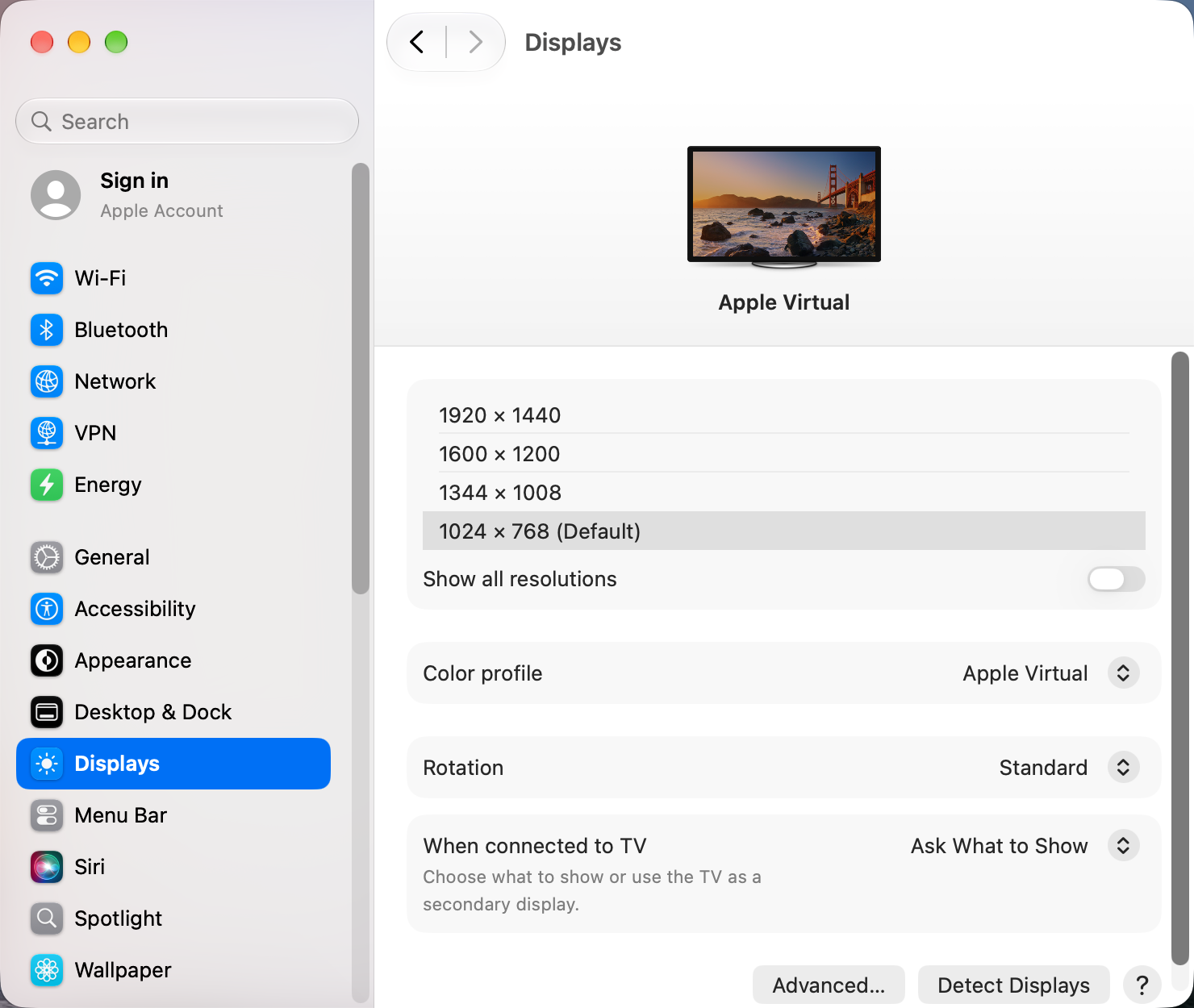
A display that never shows up points to the cable, port or dock. A display that shows up but stays black points to a setting.
The screen flickers
- In System Settings › Displays, select the monitor and lower Refresh rate one step at a time.
- If it's set to a variable or adaptive rate, pick a fixed rate such as 60 Hz instead.
- In the monitor's own menu, turn off adaptive sync, dynamic contrast and automatic input switching.
- Swap the cable for one certified for your resolution and refresh rate. A DisplayPort or Thunderbolt cable is more reliable than an HDMI adapter.
- Quit display utilities you've installed, then test again.
No signal through a dock
- Connect the monitor straight to the Mac. If that works, the dock is the problem.
- Update the dock's firmware with its maker's app, and try another port on the dock.
- For DisplayLink docks, install the latest DisplayLink Manager. Then turn it on in System Settings › Privacy & Security › Screen & System Audio Recording and choose Quit & Reopen.
HDR is missing
- The High Dynamic Range switch only appears for external monitors that support HDR10.
- Use a port and cable that support HDR at your resolution and refresh rate, and update the monitor's firmware.
- Disconnect the display, restart, and reconnect it.
- For an Apple Studio Display, install any display update offered in Software Update and keep it connected until the update finishes.
Wrong resolution after waking
Hold Option, click Detect Displays, then choose the resolution again. macOS 27 remembers layouts better than Tahoe, but docks can still confuse it.
Also on macOS 27
If the problem is a black screen in Mission Control rather than the monitor itself, see Mission Control black screens on macOS 27.
Other apps that can help
You don’t need any of these for the steps above. They go further in different ways, so pick what fits how you work.
| App | What it does | Price |
|---|---|---|
| BetterDisplay | Extra resolutions, HiDPI on any screen, and finer control over each display | Free, Pro paid |
| MonitorControl | Control external monitor brightness and volume from the Mac | Free, open source |
| DisplayLink Manager | Driver for DisplayLink docks, needed for extra displays on some Macs | Free |
Sources and further reading
- How to fix an external monitor not working on macOS 27 Golden Gate · iThinkDifferent
- Use multiple displays and arrange them · Apple Support