DockFix
Mac Dock keeps moving to the other monitor? How to keep it on one screen
Short answer
This isn't a bug. With more than one display, macOS moves the Dock to whichever screen you push the pointer against at the Dock's edge. With the Dock at the bottom, if your pointer rests at the bottom of the second screen for a moment, perhaps while reaching for a scroll bar or a tab, the Dock jumps there.
On this page
Fix 1: Move the Dock to the left or right side
This is the simplest fix. When the Dock sits on the left or right, it can only appear on the outer edge of your whole display arrangement. That's one place, so it stops jumping.
- Open System Settings › Desktop & Dock.
- Set Dock position on screen to Left or Right.
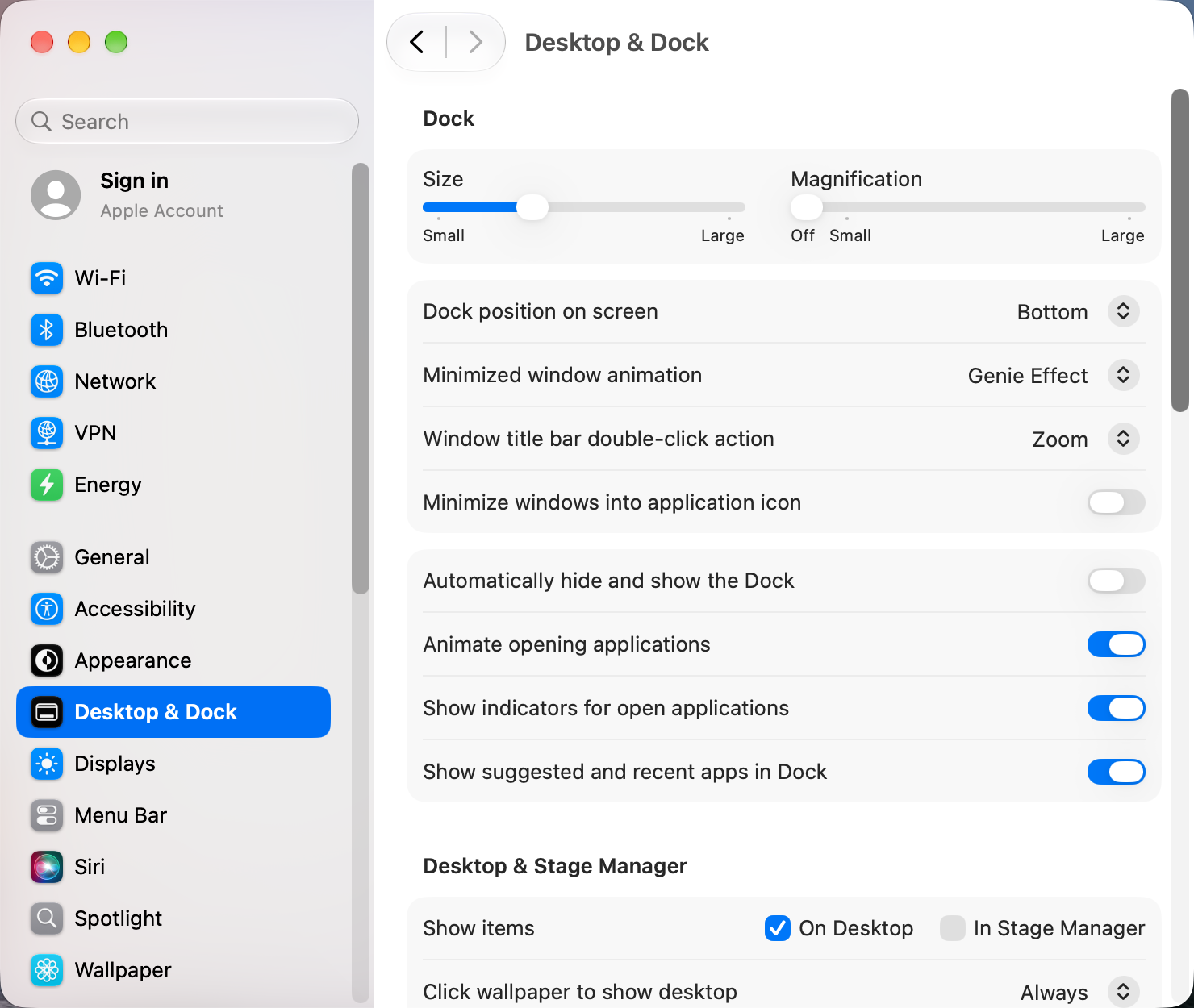
Pick the side whose outer edge belongs to the screen you want the Dock on. For example, if your laptop is on the left of your monitor, choosing Left keeps the Dock on the laptop.
Fix 2: Turn off separate Spaces for each display
When displays don't have separate Spaces, the Dock and menu bar stay on your main display.
- Open System Settings › Desktop & Dock and scroll to Mission Control.
- Turn off Displays have separate Spaces.
- Log out and back in for the change to take effect.
The trade-off: your other screens lose their own menu bar, and a full-screen app turns the other displays blank. If you use full-screen apps a lot, Fix 1 is the better choice.
Fix 3: Choose the right main display
If the Dock keeps returning to the wrong screen after you log in or wake the Mac, that screen is probably set as your main display.
- Open System Settings › Displays.
- Select the screen you want as your main one and set Use as to Main display. Or click Arrange… and drag the white menu bar strip onto that screen.
Move the Dock to another screen on purpose
To send the Dock to a different screen, move the pointer to the bottom edge of that screen (or the side, if your Dock is on a side) and keep pushing for a moment. The Dock slides over. This only works while Displays have separate Spaces is on.
Still jumping?
- Autohide makes it worse. With Automatically hide and show the Dock on, every brush against the bottom edge counts. Turning autohide off reduces accidental jumps.
- Displays stacked vertically. If one screen sits above the other, the bottom edge of the top screen isn't an outer edge, so arrange them side by side or put the Dock on a side.
- Restart the Dock. If it gets stuck on the wrong screen, run this in Terminal. It only restarts the Dock and keeps your settings.
killall DockOther apps that can help
You don’t need any of these for the steps above. They go further in different ways, so pick what fits how you work.
| App | What it does | Price |
|---|---|---|
| uBar | Replaces the Dock with a Windows-style taskbar | Paid |
| DockDoor | Window previews when you hover Dock icons | Free, open source |
| BetterDisplay | Manage displays, resolutions and the main display | Free, Pro paid |
| Hammerspoon | Script windows, Spaces and hot corners with Lua | Free, open source |
| Mission Boost Made by us | Close, minimize and quit windows inside Mission Control, plus side-by-side layouts from there | €9 once, free trial |
Sources and further reading
- Use multiple displays and arrange them · Apple Support
- Work in multiple Spaces on Mac · Apple Support
Applies tomacOS 27TahoeSequoiaSonoma
Reader tips
No tips yet. If something else worked for you, or a step looks different on your Mac, add it here.