WindowsHow-to
How to snap windows on a Mac: halves, quarters and keyboard shortcuts
Short answer
Yes, macOS can snap windows. Since macOS 15 Sequoia it has built-in window tiling, so you don't need an extra app to put two windows side by side. On older versions you're limited to Split View.
On this page
Snap by dragging
- Drag a window by its title bar to the left or right edge of the screen. Let go when the outline appears, and the window fills that half.
- Drag it to a corner to fill a quarter of the screen.
- Drag it to the top edge (into the menu bar) to fill the whole screen without going full screen.
- Hold Option while dragging to see the tile outline right away, without pushing against the edge.
Snap with keyboard shortcuts
These work on the front window. Fn is the Globe key on newer keyboards.
| Shortcut | What it does |
|---|---|
| Fn Control ← or → | Tile to the left or right half |
| Fn Control ↑ or ↓ | Tile to the top or bottom half |
| Fn Control F | Fill the screen |
| Fn Control C | Center the window |
| Fn Control R | Return to the previous size |
| Fn Control Shift ← or → | Arrange the two front windows side by side |
You can see every option, with its shortcut, in the menu bar under Window › Move & Resize. Hovering over a window's green button shows the same choices.
Snap a window to another monitor
Drag the window onto the other display first, then snap it there by dragging to an edge or using the shortcuts above. Many apps also have Window › Move to [display name] in the menu bar, which sends the window across without dragging. Some apps put it under Move & Resize instead.
Snapping doesn't work? Check these settings
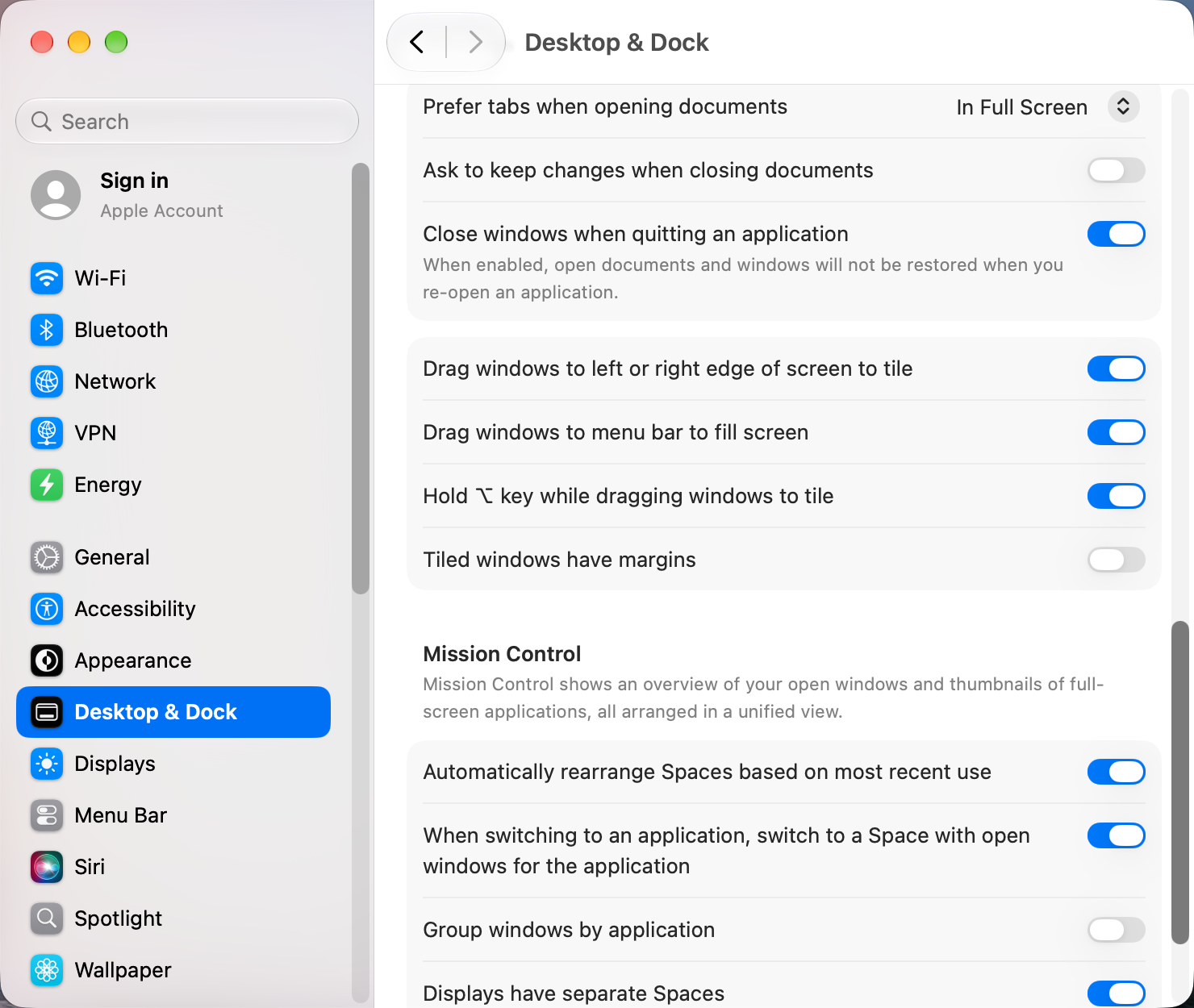
Open System Settings › Desktop & Dock and scroll to Windows. Four switches control tiling:
- Drag windows to left or right edge of screen to tile. If this is off, dragging to an edge does nothing.
- Drag windows to menu bar to fill screen.
- Hold ⌥ key while dragging windows to tile.
- Tiled windows have margins. Turn this off if you want snapped windows to touch with no gap.
A few other reasons snapping fails:
- You're on macOS 14 Sonoma or older. Built-in tiling arrived in macOS 15. Check under Apple menu › About This Mac.
- The app has a minimum size. Some apps refuse to get narrower than a set width, so a half-screen tile on a small display doesn't fit.
- Another window manager is running. Apps like Rectangle or Magnet can take over the same drags and shortcuts. Quit one to test.
- The shortcut clashes. If Fn Control shortcuts don't respond, look for a conflict in System Settings › Keyboard › Keyboard Shortcuts.
Turn snapping off
If windows keep snapping when you don't want them to, switch off Drag windows to left or right edge of screen to tile and Drag windows to menu bar to fill screen in System Settings › Desktop & Dock. Keyboard tiling keeps working.
Other apps that can help
You don’t need any of these for the steps above. They go further in different ways, so pick what fits how you work.
| App | What it does | Price |
|---|---|---|
| Rectangle | Halves, thirds and quarters with shortcuts or by dragging to snap areas | Free, open source (Pro paid) |
| Magnet | Drag-to-snap and shortcuts, sold on the Mac App Store | Paid |
| Moom | Hover the green button for a resize grid; saves window arrangements | Paid |
| BetterSnapTool | Custom snap areas and per-app snapping | Paid |
| Loop | Radial menu for resizing windows with a trigger key | Free, open source |
| Amethyst | Automatic tiling layouts, no system changes needed | Free, open source |
| AeroSpace | i3-style tiling with its own instant workspaces | Free, open source |
| yabai | Advanced automatic tiling; some features need System Integrity Protection partly off | Free, open source |
| Mission Boost Made by us | Close, minimize and quit windows inside Mission Control, plus side-by-side layouts from there | €9 once, free trial |
Sources and further reading
- Tile windows on Mac · Apple Support
- Change window tiling settings on Mac · Apple Support
- How to tile windows in macOS · Make Tech Easier
Applies tomacOS 27TahoeSequoia
Reader tips
No tips yet. If something else worked for you, or a step looks different on your Mac, add it here.