Stage Manager not working or laggy on Mac: fixes and settings
Short answer
Most Stage Manager problems come from three settings: whether it's actually on, how it shows an app's windows, and whether clicking the wallpaper hides everything. Lag usually comes down to the animations, which you can tone down.
On this page
Turn Stage Manager on or off
- Click Control Center in the menu bar, then the Stage Manager tile.
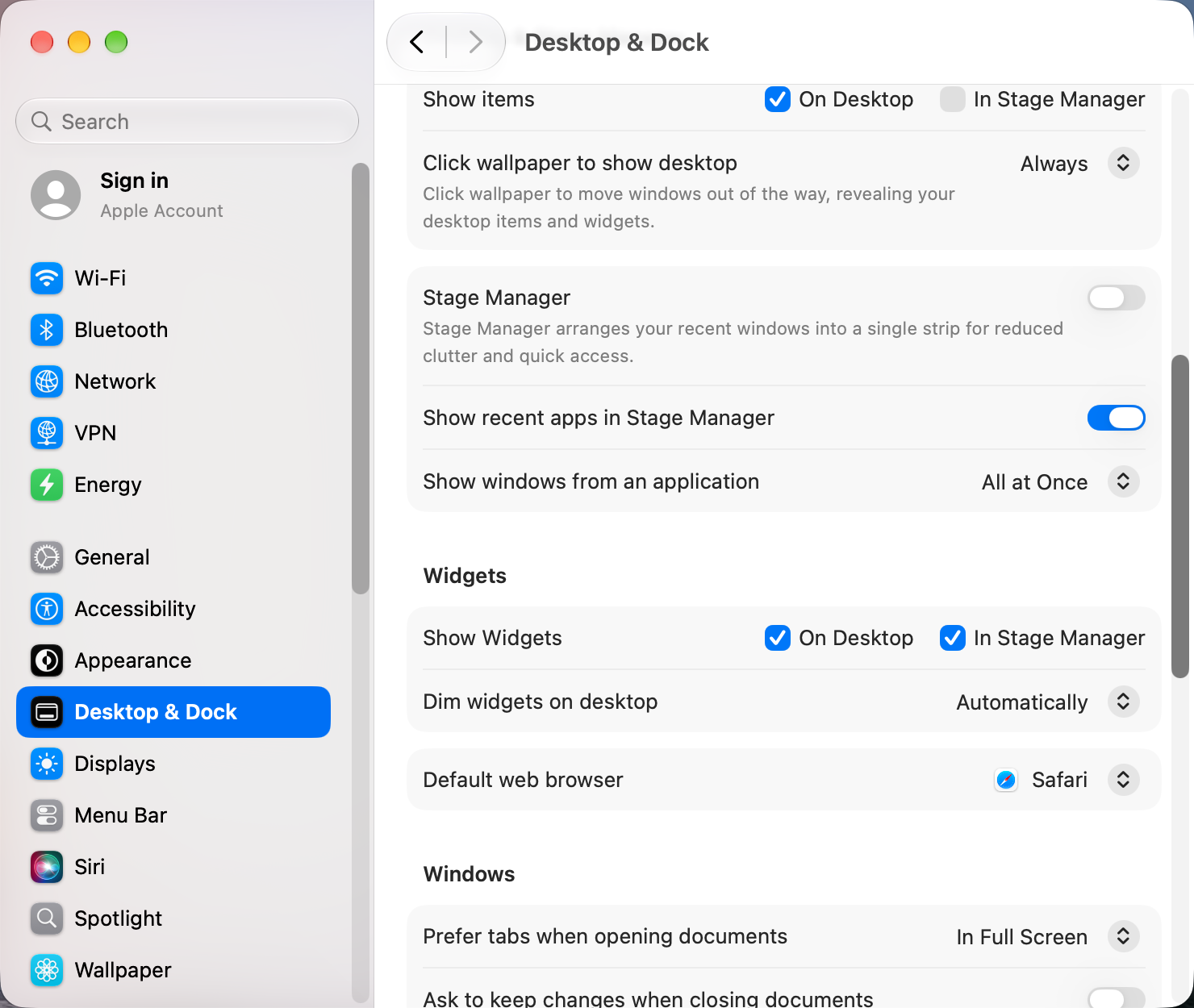
- Or open System Settings › Desktop & Dock and switch Stage Manager on or off.
On macOS 27 and 26 Tahoe, Stage Manager can't get its own menu bar icon: it isn't in System Settings › Menu Bar › Menu Bar Controls. Control Center is the quickest way in.
Settings that change how it behaves
In System Settings › Desktop & Dock, the Stage Manager options sit right under its switch:
- Show recent apps in Stage Manager: turn off to hide the strip of recent apps at the side, which gives windows the full width.
- Show items: tick In Stage Manager if you want to see files on your desktop while Stage Manager is on.
- Show windows from an application: All at Once brings every window of the app forward, while One at a Time brings only the last one. If "windows are missing", this is usually why.
Also check Click wallpaper to show desktop in the same pane. Set to Always, a stray click on the wallpaper sweeps every window away, which feels like Stage Manager broke. Only in Stage Manager keeps that behavior limited to Stage Manager.
Stage Manager is laggy
On macOS 27, Stage Manager stutter is part of a wider problem with Mission Control and Spaces. See the macOS 27 workarounds as well as the tips below.
- Turn on System Settings › Accessibility › Motion › Reduce motion. Stage Manager's slides become fades, which feel much quicker.
- Turn on Reduce transparency in Accessibility › Display, which cuts the blur effects behind the strip.
- Close apps with many open windows you don't need. Every window in the strip is a live thumbnail.
- Restart the Dock, which draws Stage Manager:
killall DockCan you move the strip to the right side?
There is no setting for the strip's side. It sits on the left, and macOS moves it to the right when your Dock is on the left. To get the strip on the right, set Desktop & Dock › Dock position on screen to Left.
Not working on an external display?
Stage Manager works on external displays, but each display has its own strip and set of groups. If windows jump between screens, check Displays have separate Spaces under Desktop & Dock › Mission Control, since Stage Manager follows the same Spaces rules.
Other apps that can help
You don’t need any of these for the steps above. They go further in different ways, so pick what fits how you work.
| App | What it does | Price |
|---|---|---|
| Rectangle | Halves, thirds and quarters with shortcuts or by dragging to snap areas | Free, open source (Pro paid) |
| AltTab | Windows-style window switcher with close, minimize and quit buttons | Free, open source |
| Loop | Radial menu for resizing windows with a trigger key | Free, open source |
| Mission Boost Made by us | Close, minimize and quit windows inside Mission Control, plus side-by-side layouts from there | €9 once, free trial |
Sources and further reading
- Use Stage Manager on Mac · Apple Support
- Stage Manager not working (community thread) · Apple Community
Applies tomacOS 27TahoeSequoiaSonoma
Reader tips
No tips yet. If something else worked for you, or a step looks different on your Mac, add it here.