App comparisonsComparison
The best window managers for Mac in 2026, compared fairly
Short answer
Start with what's built in: since macOS 15 Sequoia, the Mac snaps windows to halves and quarters with no app at all. If you want more, Rectangle is the best free choice for keyboard snapping, Moom and Magnet are polished paid options, and AeroSpace or Amethyst are for people who want windows tiled automatically. Mission Boost, which we make, works inside Mission Control rather than replacing any of these.
On this page
What macOS does on its own
Drag a window to an edge or corner, or press Fn Control with an arrow key, to snap it. The full guide is in how to snap windows on a Mac. What's missing: thirds, custom layouts, layouts saved per display setup, and automatic tiling.
How to choose
| You want | Look at |
|---|---|
| More snap positions and shortcuts, free | Rectangle, Loop |
| A polished paid app that just works | Magnet, Moom, BetterSnapTool |
| Saved layouts for "laptop only" vs "at my desk" | Moom |
| Windows tiled automatically, keyboard-driven | AeroSpace, Amethyst, yabai |
| Your own rules, written as code | Hammerspoon |
| Tidy windows from Mission Control | Mission Boost (made by us) |
Notes on each
- Rectangle is open source and the most common recommendation. Rectangle Pro adds layouts and more.
- Magnet is simple and sold on the App Store, which some workplaces require.
- Moom shows a grid when you hover the green button and can save arrangements for each display setup.
- Loop uses a radial menu around the pointer: hold a key, flick, done.
- AeroSpace has its own workspaces instead of using macOS Spaces, which also sidesteps the macOS 27 Spaces glitches.
- yabai is the most powerful, but some features require partly turning off System Integrity Protection. Read its documentation first.
Running more than one
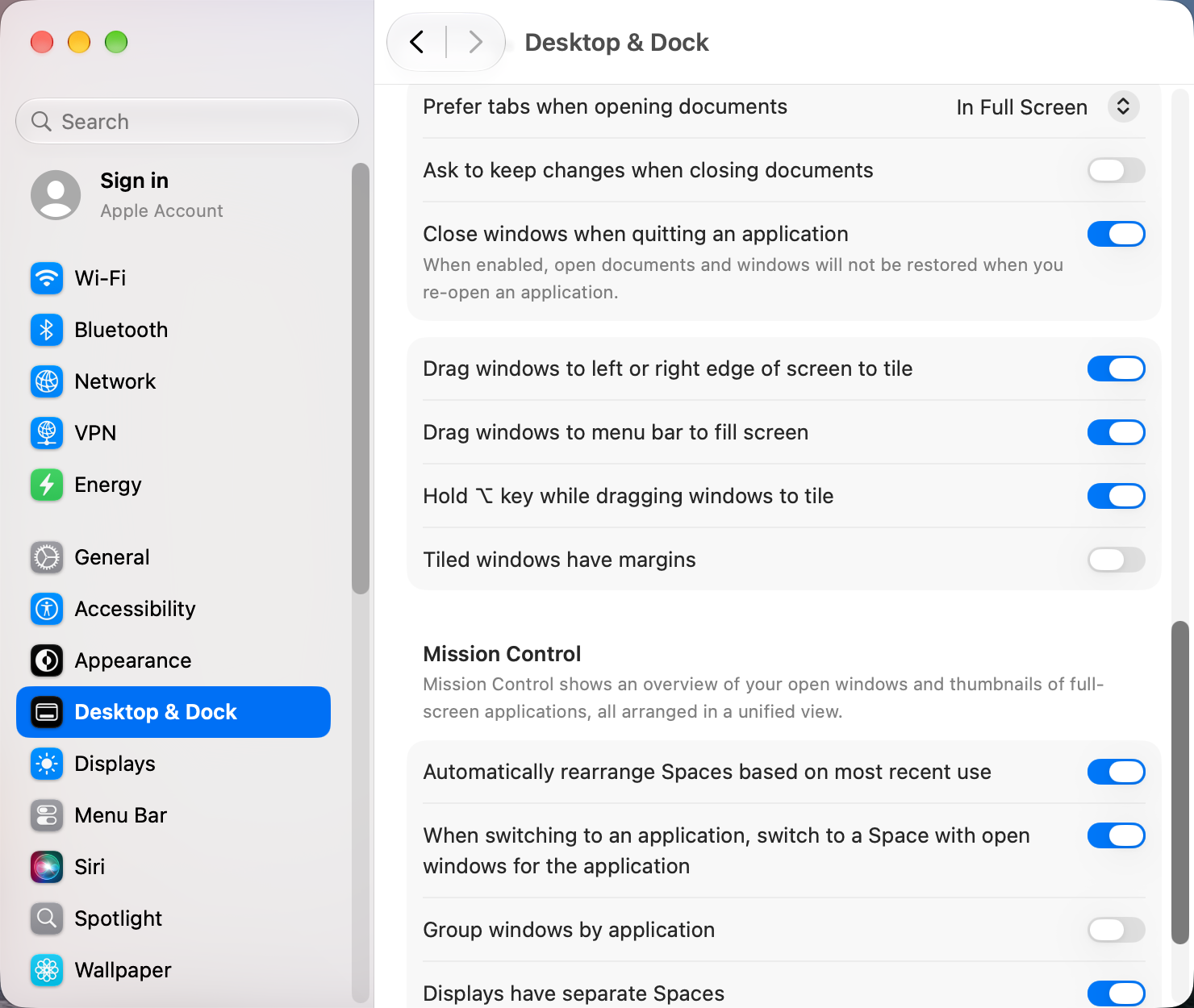
Two window managers fight over the same shortcuts and drags. If you install one, turn off the macOS tiling options you don't use in System Settings › Desktop & Dock › Windows.
Other apps that can help
You don’t need any of these for the steps above. They go further in different ways, so pick what fits how you work.
| App | What it does | Price |
|---|---|---|
| Rectangle | Keyboard shortcuts and drag-to-snap for halves, thirds and quarters | Free, open source (Pro paid) |
| Magnet | Drag-to-snap and shortcuts, sold on the Mac App Store | Paid |
| Moom | Resize grid on the green button, saved layouts for display setups | Paid |
| BetterSnapTool | Custom snap areas, per-app rules | Paid |
| Loop | Radial menu around the pointer for resizing | Free, open source |
| Amethyst | Automatic tiling layouts in the style of xmonad | Free, open source |
| AeroSpace | i3-style tiling with its own instant workspaces | Free, open source |
| yabai | Scriptable tiling; some features need System Integrity Protection partly off | Free, open source |
| Hammerspoon | Write your own window rules in Lua | Free, open source |
| Mission Boost Made by us | Close, minimize and quit windows inside Mission Control, plus side-by-side layouts from there | €9 once, free trial |
Sources and further reading
- Tile windows on Mac · Apple Support
- 16 Mac window tiling tips · MacMost
- Window management apps · r/macapps
Applies tomacOS 27TahoeSequoia
Reader tips
No tips yet. If something else worked for you, or a step looks different on your Mac, add it here.